How to Setup Deriv Go Trader
A step-by-step guide to installing and setting up the Deriv Go Trader application on Windows, macOS, and Linux.
How to Setup Deriv Go Trader
Getting started with Deriv Go Trader is a seamless process. Whether you are on Windows, macOS, or Linux, our installer handles everything for you. Follow this guide to get your trading bot up and running in minutes.
Prerequisites
Before you begin, ensure you have the following:
- An active Deriv account (You'll need this for your API keys).
- A stable internet connection.
- MongoDB connection string (We'll cover how to get this in another guide, or you can use a local instance).
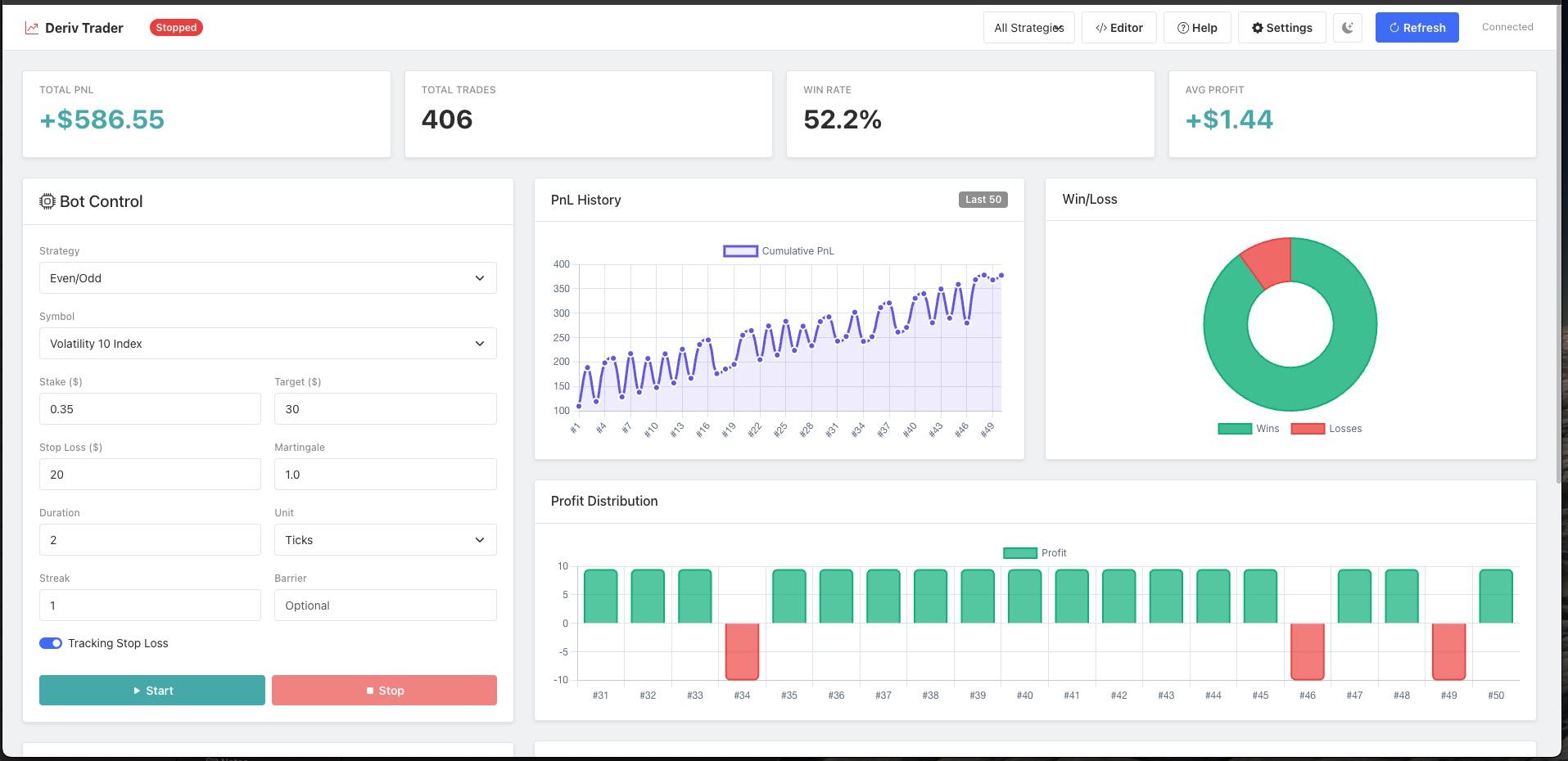
Installation Steps
1. Download the Installer
After purchasing Deriv Go Trader, you will receive links to download the installer for your operating system.
- Windows: Download the
.exefile. - macOS: Download the
.dmgfile. - Linux: Download the
.AppImagefile.
2. Install on Your OS
Windows
- Double-click the downloaded
.exefile. - You might see a "Windows protected your PC" popup (SmartScreen). Click "More info" and then "Run anyway" (this happens because we are a niche software provider).
- The installer will extract the files and launch the application automatically.
macOS
- Double-click the downloaded
.dmgfile. - Drag the "Deriv Go Trader" icon into your Applications folder.
- Open Finder, go to Applications, and double-click "Deriv Go Trader".
- If you see a security warning ("App cannot be verified"), Go to System Settings > Privacy & Security and click "Open Anyway".
Linux
- Right-click the
.AppImagefile and select Properties. - Go to the Permissions tab and ensure "Allow executing file as program" is checked.
- Double-click the file to run it.
First Launch & Configuration
Once the application launches for the first time, you will be greeted by the Setup Wizard. This wizard ensures your bot is connected securely to Deriv and your database.
- API Key: Enter your Deriv API Key. (Don't have one? Check our guide on How to get Deriv API keys securely).
- MongoDB URI: Enter your MongoDB connection string. (Need help? See How to setup Mongo database).
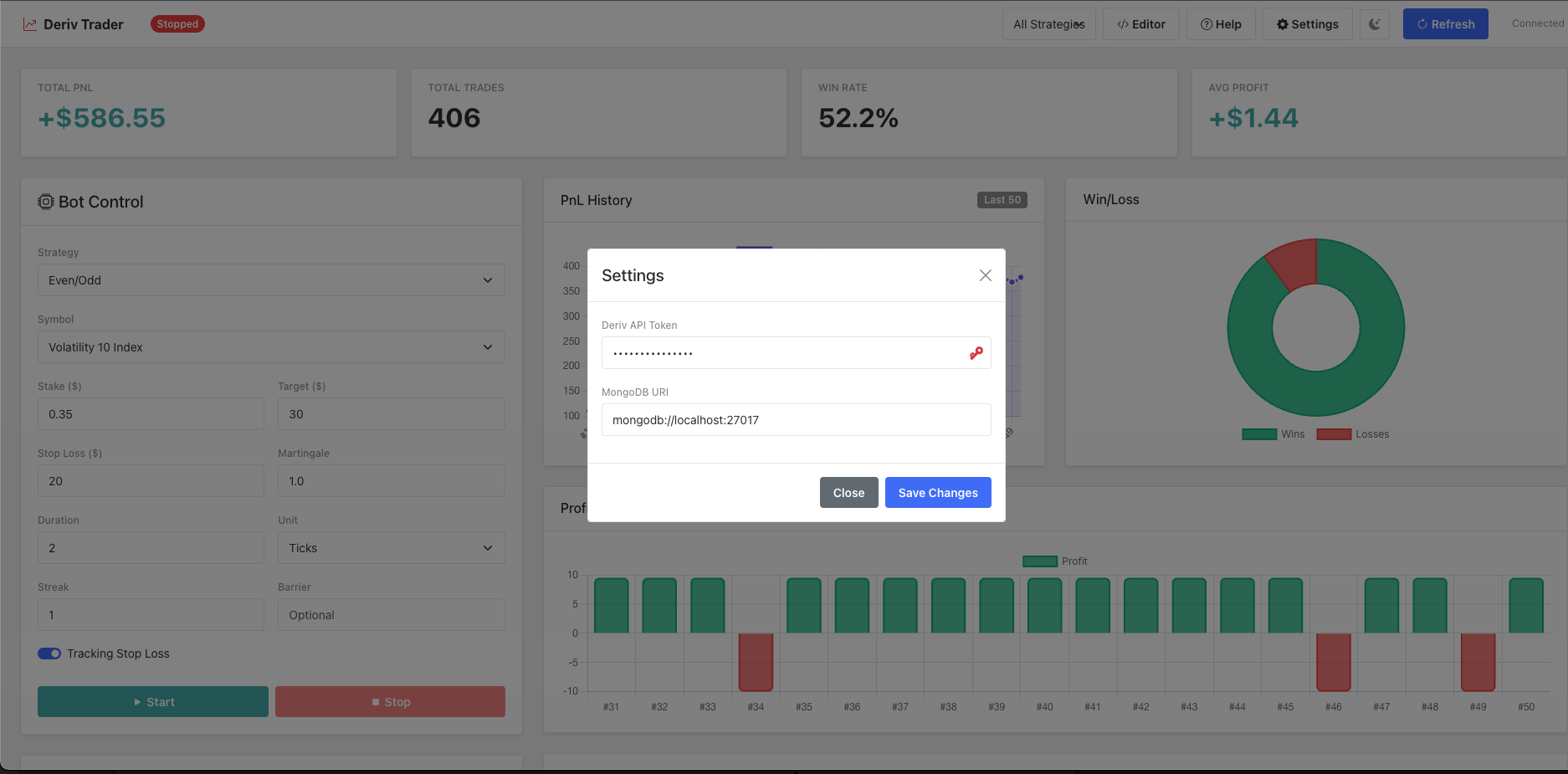
- Click "Save & Continue".
- The app will validate your credentials. If successful, you will be taken to the main dashboard.
Configuring your First Bot
Now that you are in, verify everything is working:
- Look for the "Status: Connected" indicator in the top right corner.
- You should see your account balance reflect your Deriv account.
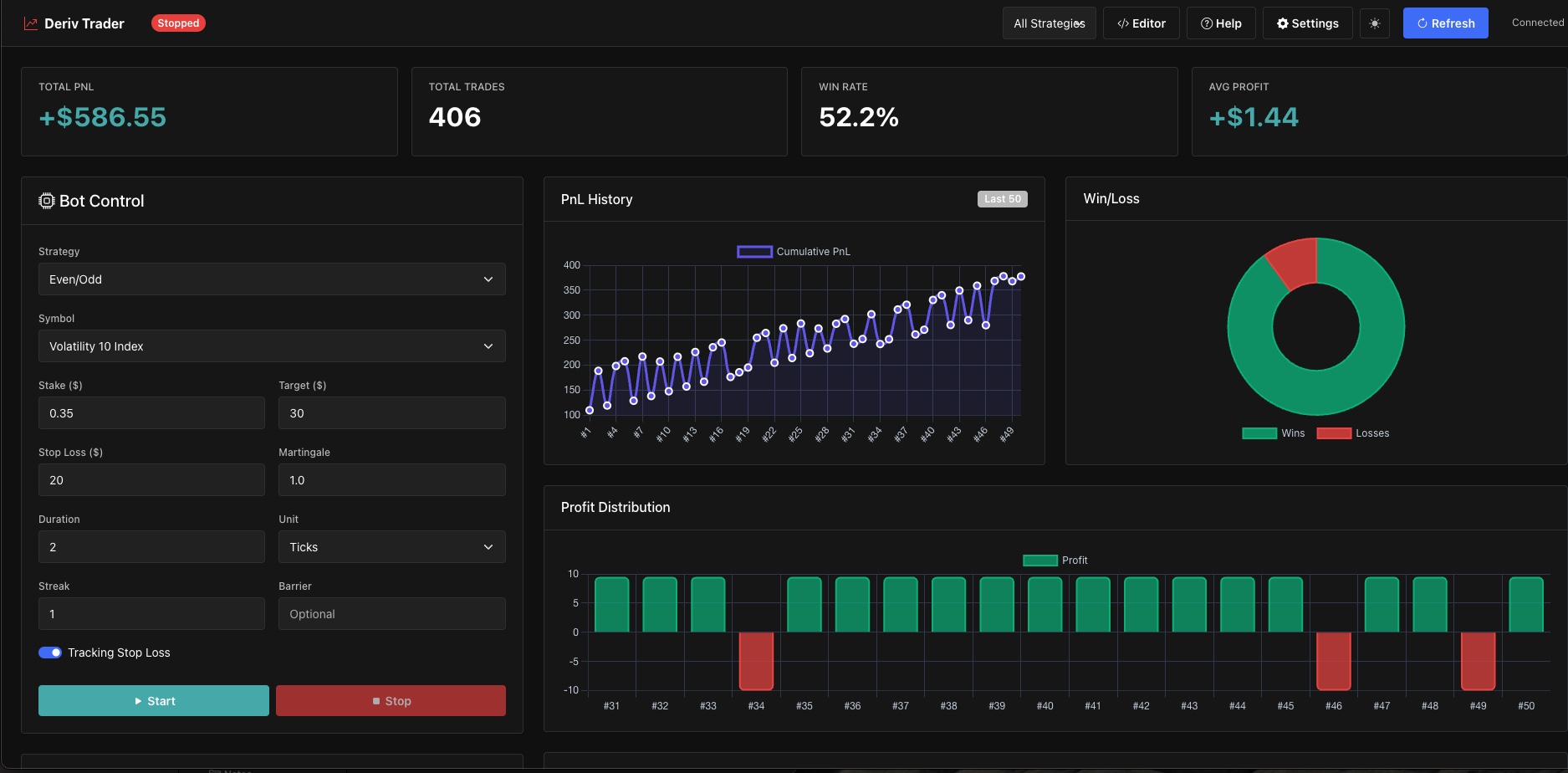
You are now ready to start trading! Check out our next guide on How to place a trade.